

Guide
Configure Hymalaia to use models served through Bifrost.Hymalaia connects to your Bifrost gateway by fetching the models exposed at its
/v1/models endpoint.
Bifrost can expose models from multiple vendors behind a single endpoint.1
Set Up Your Bifrost Gateway
Make sure your Bifrost deployment is reachable from the Hymalaia server.You will need your Bifrost API Base URL.If your Bifrost deployment requires authentication, also generate a Bifrost API Key.
2
Navigate to Language Models
Access the Admin Panel from your user profile icon, then navigate to Configuration → Language Models.
3
Configure Bifrost
Select Bifrost from the available providers.Give your provider a Display Name.Enter the API Base URL for your Bifrost gateway.If your gateway requires authentication, enter your API Key.Click Fetch Available Models to load the language models currently exposed by Bifrost.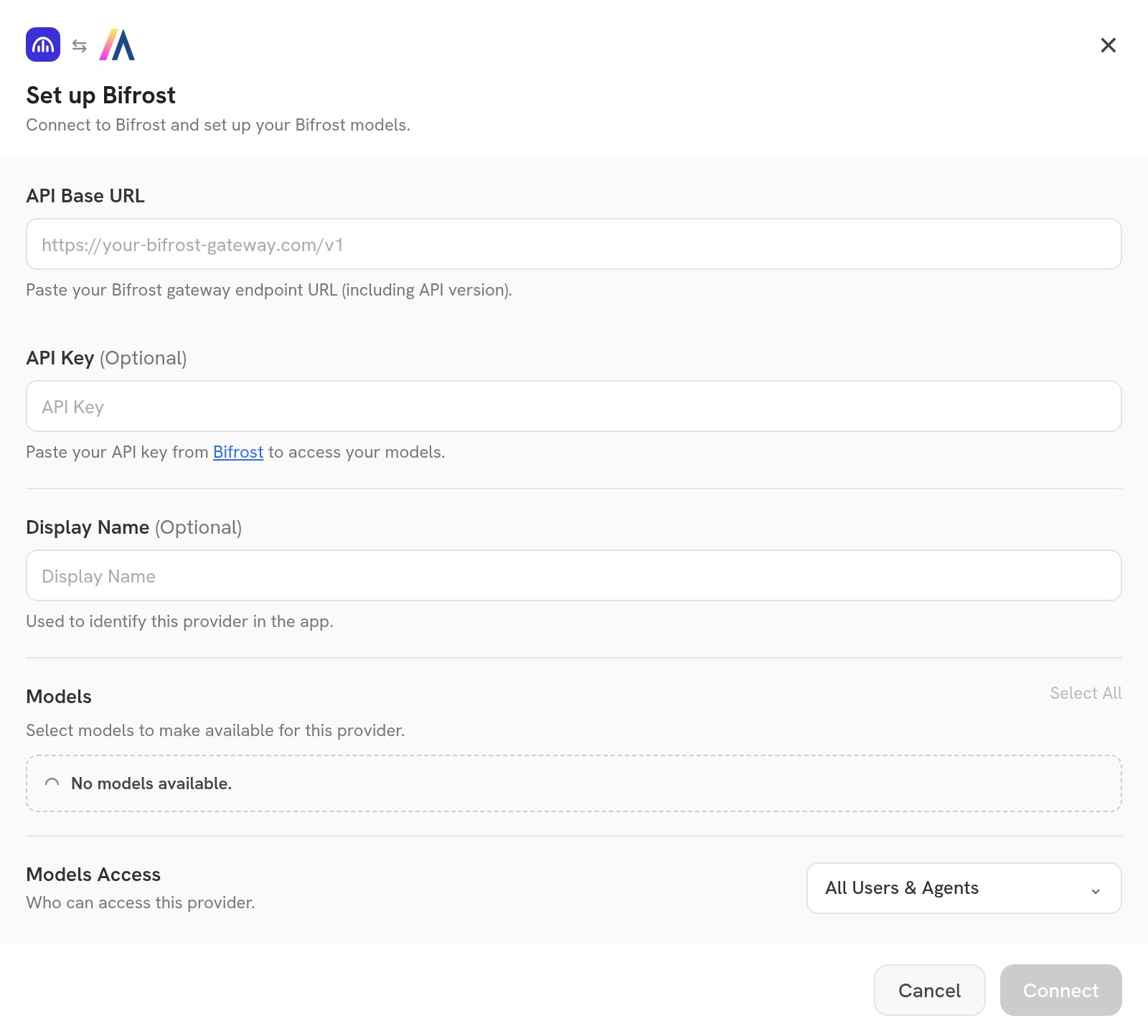
4
Review the Imported Models
Hymalaia will import the model IDs returned by Bifrost and use the display names returned by the gateway when available.This is useful when your Bifrost gateway exposes models from multiple vendors such as Anthropic, OpenAI, or others.
5
Choose Visible Models
In the Advanced Options, you will see a list of all models available from this provider.
You may choose which models are visible to your users in Hymalaia.Setting visible models is useful when a provider publishes multiple models and versions of the same model.
6
Designate Provider Access
Lastly, decide whether the provider should be public to all users in Hymalaia.If set to private,
the provider’s models will be available to Admins and User Groups you explicitly assign the provider to.