> ## Documentation Index
> Fetch the complete documentation index at: https://docs.hymalaia.com/llms.txt
> Use this file to discover all available pages before exploring further.
# Chrome Extension
> Use Hymalaia in Chrome from any page.
# Hymalaia Chrome Extension
Use the Hymalaia extension to ask questions from anywhere in Chrome. You can also replace your new-tab page with a custom Hymalaia experience.
## Features
* Ask questions from any page
* Access the Hymalaia Sidebar anywhere on the web
* Use smart context menu actions:
* 🔎 **Search selected text** in Hymalaia
* 🧠 **Add selected text to your conversation**
* 📄 **Add the entire page** to your conversation
* ✨ **Ask Hymalaia to summarize the page**
* 🕵️♂️ **Look up name details** (LinkedIn, etc.)
Future versions of the Hymalaia Chrome Extension will allow you to ask questions about the page you're currently on and index recently visited pages into Hymalaia's knowledge base.
## Setting Up (Self-Hosted Users)
If you're using **Hymalaia Cloud**, install the extension directly from the Chrome Web Store.
> Minimum required version: `v0.19.0`
1. Go to `chrome://extensions` in Chrome.
 2. Enable **Developer mode** (upper right).
3. Click **Load unpacked**.
4. Select the folder of the Hymalaia Chrome Extension repo (e.g., `Hymalaia-chrome-extension`).
5. Click **Load**.
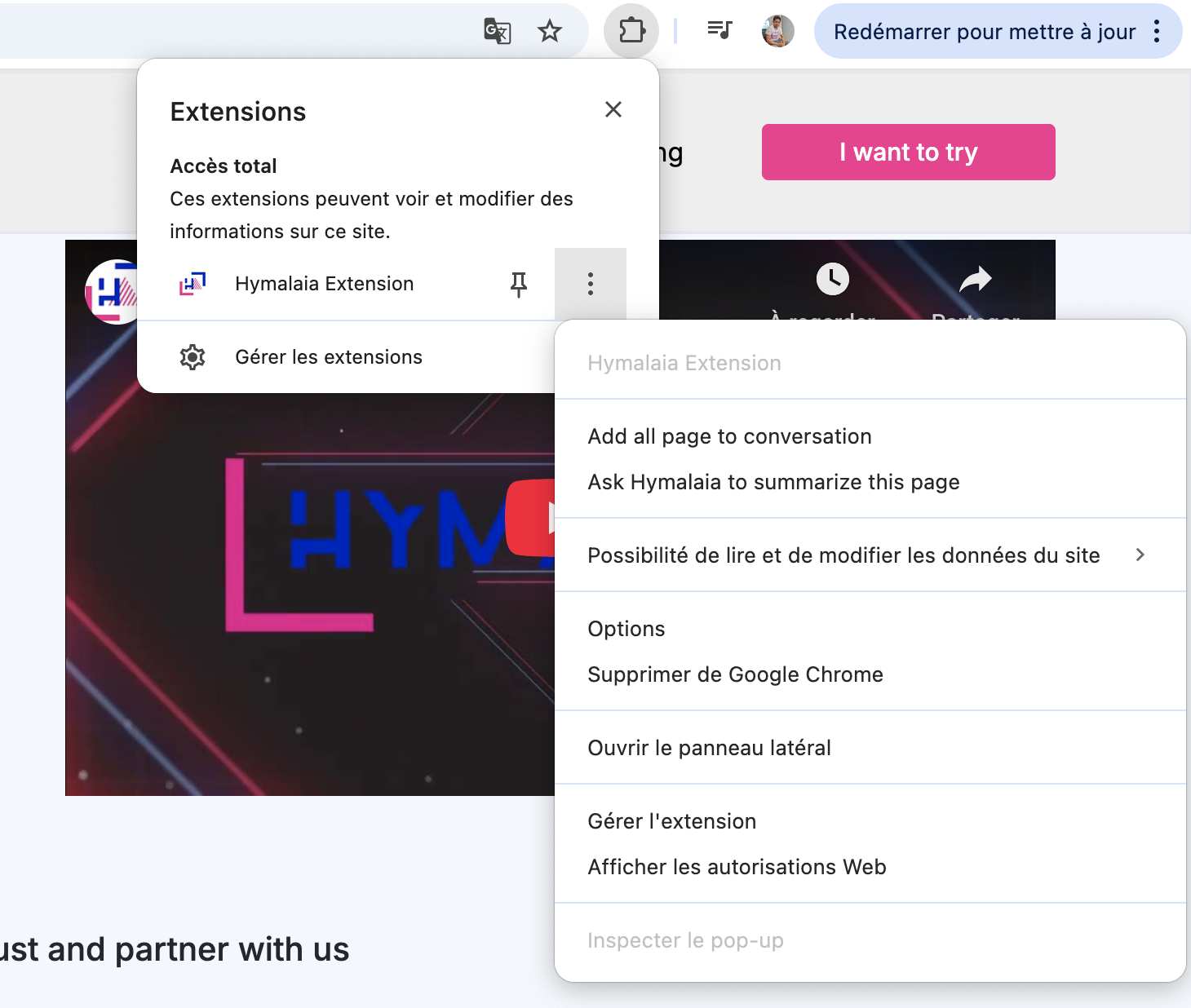
6. Click the `...` next to the extension → **Options**.
2. Enable **Developer mode** (upper right).
3. Click **Load unpacked**.
4. Select the folder of the Hymalaia Chrome Extension repo (e.g., `Hymalaia-chrome-extension`).
5. Click **Load**.
6. Click the `...` next to the extension → **Options**.
 7. Set the **Root Domain** to your self-hosted Hymalaia instance’s URL.
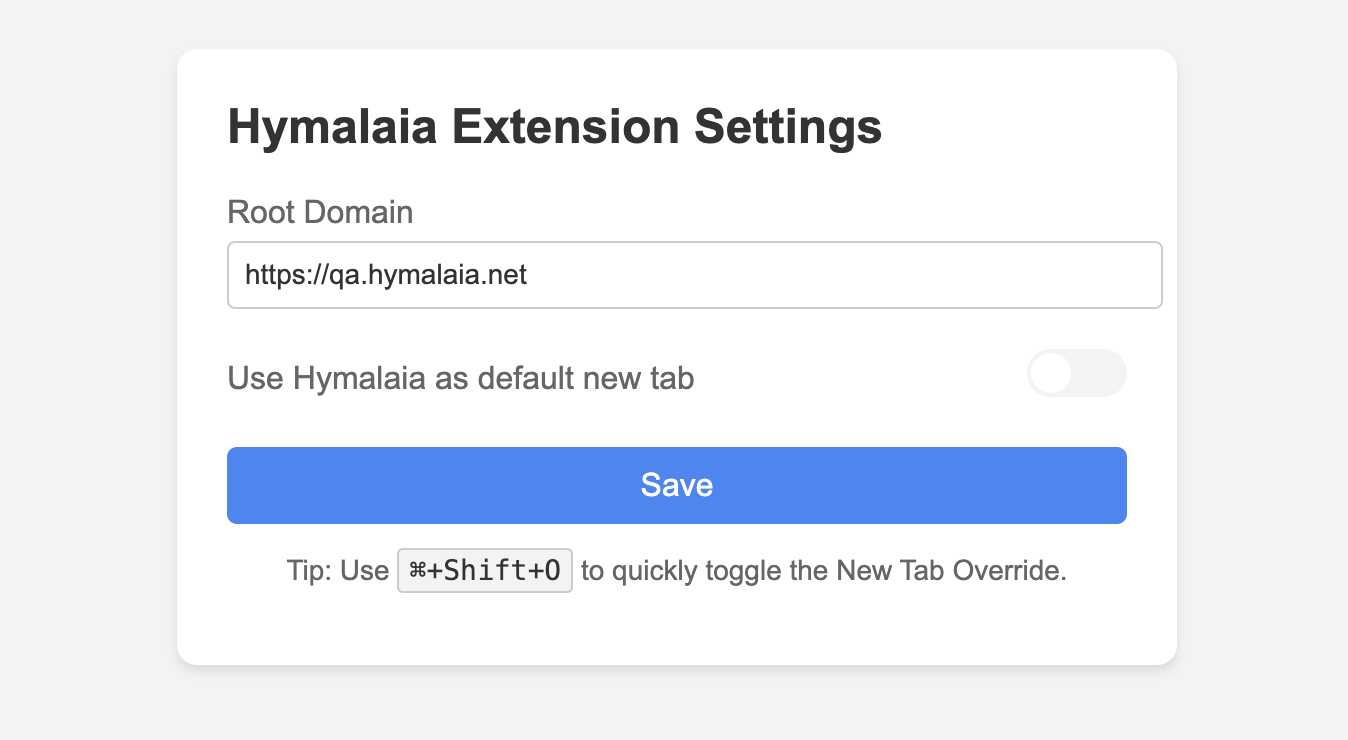 ✅ The extension is now active and connected to your instance.
## Enterprise Installation (Google Admin)
Use this if you manage a large group of users via Google Admin.
### Step 1: Access Chrome Management
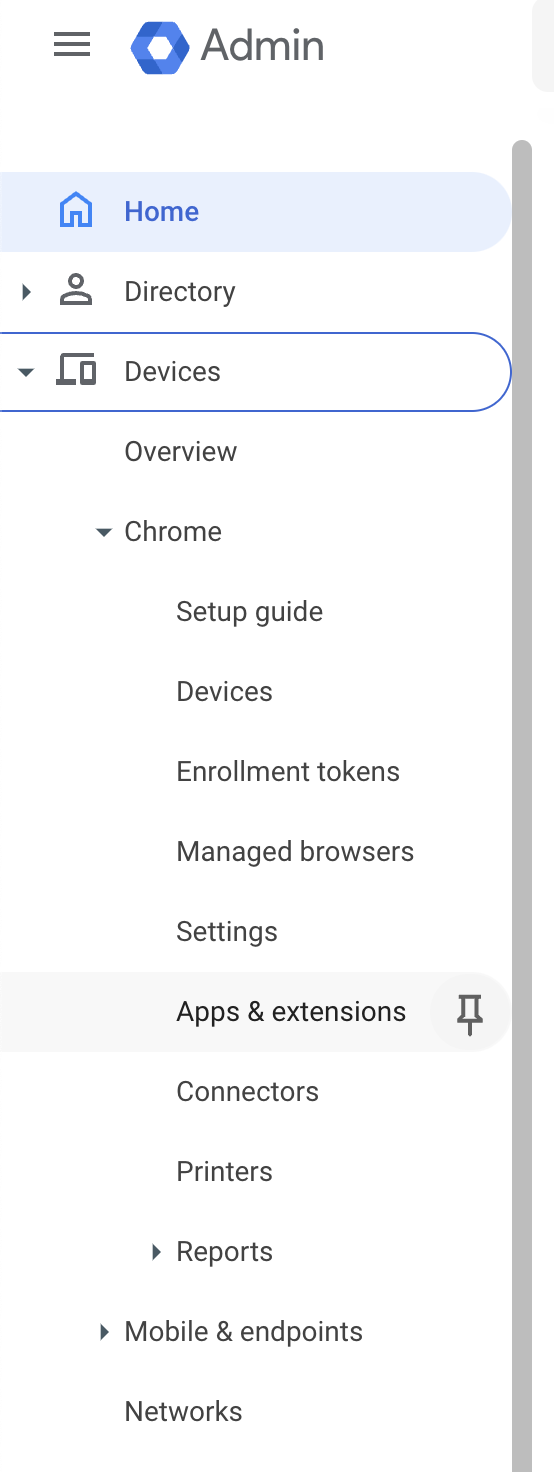
* Go to `Devices → Chrome → Apps and extensions`.
✅ The extension is now active and connected to your instance.
## Enterprise Installation (Google Admin)
Use this if you manage a large group of users via Google Admin.
### Step 1: Access Chrome Management
* Go to `Devices → Chrome → Apps and extensions`.
 ### Step 2: Install Extension
* Get the **extension ID** from the Hymalaia team.
* Click the ➕ (plus) icon to add a new extension.
* Paste the extension ID.
* Click **Add**.
### Step 3: Configure Settings
* Locate the Hymalaia extension in the console.
* Manage options like:
* Force install for users/org units
* Allow/block users
* Version pinning and update settings
* Installation policies (allow/force/block)
### Step 4: Save Changes
* Save your config to apply changes across your org.
## Self-Hosted Installation
1. Clone or download the Hymalaia Chrome Extension repository.
2. Follow the [setup steps](#setting-up-self-hosted-users).
3. To distribute:
* Host the `.crx` file yourself
* Or publish it as **private/unlisted** on the Chrome Web Store.
## Updating Extensions
### ✅ Enterprise
* Chrome auto-updates force-installed extensions.
* You can **pin versions** in the Admin console if needed.
* ⚠️ Avoid long-term pinning (no security updates).
### 🔄 Self-Hosted
1. Bump version in `manifest.json` (e.g., `1.0` → `1.1`).
2. Repack the extension (new `.crx` file).
3. Update where users access/install it.
4. If using GPO, update CRX version and URL.
## Extension Management in Enterprise
### Management Options
* Block/Allow list of extensions
* Force installation
* Block extensions on sensitive domains
* Permission restrictions
### Example: Block Extensions on Specific Domains
1. Go to:
* `Devices → Chrome → Apps & extensions → Users & browsers`
2. Click ⚙️ Additional Settings.
3. Add blocked host patterns:
```txt theme={null}
*://*.sensitive-domain.com
```
4. Add allowed host patterns if needed.
## Group Policy (GPO) Setup (Windows)
1. Install Chrome ADM/ADMX templates.
2. Open Group Policy Editor:
* `gpedit.msc → Computer Configuration → Administrative Templates → Google → Google Chrome → Extensions`
3. Configure policies:
* `ExtensionInstallBlocklist`
* `ExtensionInstallAllowlist`
* `ExtensionInstallForcelist`
* `ExtensionSettings`
4. Use JSON/Registry to define options like:
* `blocked_permissions`
* `runtime_blocked_hosts`
## Self-Hosting and Packaging
If you want to avoid using the Chrome Web Store:
1. Go to `chrome://extensions → Developer Mode → Pack extension`.
2. This generates a `.crx` and a private `.pem` key (keep it safe).
3. Host `.crx` and `update.xml` on your server/intranet.
4. Use Google Admin or GPO to point to your update URL.
### ✅ Pros
* Full release control
* Private distribution
### ⚠️ Cons
* Bypasses Chrome Store security checks
* Requires more maintenance
## Best Practices
* Refer to [Google Chrome Enterprise policies](https://chromeenterprise.google/policies/) for extension management.
* Follow Hymalaia documentation for maintaining self-hosted environments.
### Step 2: Install Extension
* Get the **extension ID** from the Hymalaia team.
* Click the ➕ (plus) icon to add a new extension.
* Paste the extension ID.
* Click **Add**.
### Step 3: Configure Settings
* Locate the Hymalaia extension in the console.
* Manage options like:
* Force install for users/org units
* Allow/block users
* Version pinning and update settings
* Installation policies (allow/force/block)
### Step 4: Save Changes
* Save your config to apply changes across your org.
## Self-Hosted Installation
1. Clone or download the Hymalaia Chrome Extension repository.
2. Follow the [setup steps](#setting-up-self-hosted-users).
3. To distribute:
* Host the `.crx` file yourself
* Or publish it as **private/unlisted** on the Chrome Web Store.
## Updating Extensions
### ✅ Enterprise
* Chrome auto-updates force-installed extensions.
* You can **pin versions** in the Admin console if needed.
* ⚠️ Avoid long-term pinning (no security updates).
### 🔄 Self-Hosted
1. Bump version in `manifest.json` (e.g., `1.0` → `1.1`).
2. Repack the extension (new `.crx` file).
3. Update where users access/install it.
4. If using GPO, update CRX version and URL.
## Extension Management in Enterprise
### Management Options
* Block/Allow list of extensions
* Force installation
* Block extensions on sensitive domains
* Permission restrictions
### Example: Block Extensions on Specific Domains
1. Go to:
* `Devices → Chrome → Apps & extensions → Users & browsers`
2. Click ⚙️ Additional Settings.
3. Add blocked host patterns:
```txt theme={null}
*://*.sensitive-domain.com
```
4. Add allowed host patterns if needed.
## Group Policy (GPO) Setup (Windows)
1. Install Chrome ADM/ADMX templates.
2. Open Group Policy Editor:
* `gpedit.msc → Computer Configuration → Administrative Templates → Google → Google Chrome → Extensions`
3. Configure policies:
* `ExtensionInstallBlocklist`
* `ExtensionInstallAllowlist`
* `ExtensionInstallForcelist`
* `ExtensionSettings`
4. Use JSON/Registry to define options like:
* `blocked_permissions`
* `runtime_blocked_hosts`
## Self-Hosting and Packaging
If you want to avoid using the Chrome Web Store:
1. Go to `chrome://extensions → Developer Mode → Pack extension`.
2. This generates a `.crx` and a private `.pem` key (keep it safe).
3. Host `.crx` and `update.xml` on your server/intranet.
4. Use Google Admin or GPO to point to your update URL.
### ✅ Pros
* Full release control
* Private distribution
### ⚠️ Cons
* Bypasses Chrome Store security checks
* Requires more maintenance
## Best Practices
* Refer to [Google Chrome Enterprise policies](https://chromeenterprise.google/policies/) for extension management.
* Follow Hymalaia documentation for maintaining self-hosted environments.