> ## Documentation Index
> Fetch the complete documentation index at: https://docs.hymalaia.com/llms.txt
> Use this file to discover all available pages before exploring further.
# Gmail Service Account
> Set up Gmail Service Account for the connector
This section walks through setting up the Gmail connector using a Service Account.
More info on Service Accounts can be found [here](https://cloud.google.com/iam/docs/service-account-overview).
A Google Workspace is required.
If you'd rather use an individuals account + OAuth to access Gmail, checkout the section [here](./oauth).
### Authorization
* [https://console.cloud.google.com/projectcreate](https://console.cloud.google.com/projectcreate)
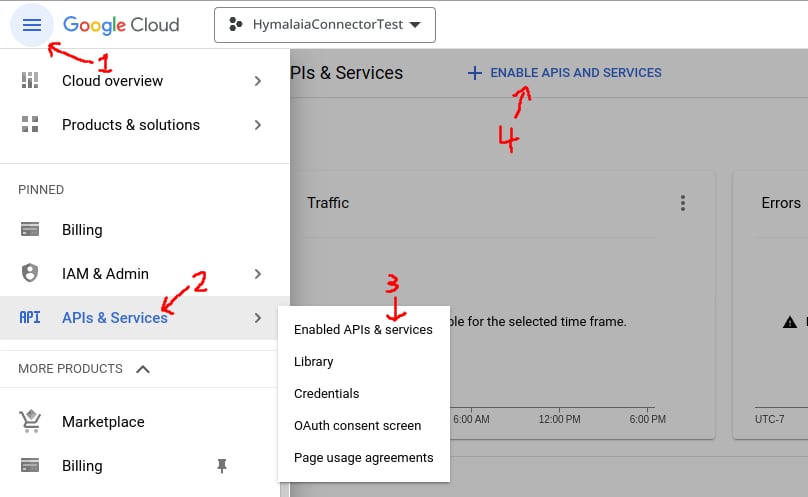
* On the left panel, open **APIs & services**
* Go to **Enabled APIs and services**
* On the top click **+ENABLE APIS AND SERVICES**
* Search for **Gmail API** and click **ENABLE**
* Alternatively visit this [link](https://console.cloud.google.com/flows/enableapi?apiid=gmail.googleapis.com), select your project and enable the **Gmail API**
* Also enable **Admin SDK API** (search and enable)
 * Go to the [Service Account management page](https://console.cloud.google.com/iam-admin/serviceaccounts) in Google Cloud.
* Click `Create Service Account` button and fill out the fields in step 1. You can ignore steps 2 and 3.
* Go to the `Keys` section, and click `Add Key`. Download this key. You will provide it when creating the credential in Hymalaia later.
Note for Google Organizations created after April 2024:
* To give the service account the proper permissions you will have to navigate to this [link](https://console.cloud.google.com/iam-admin/orgpolicies/iam-disableServiceAccountKeyCreation)
* Then select `Manage`, select `Override parent's policy` and then select `Not enforced` under `Rules`.
* Finally, select `SET POLICY`
Give this **Service Account** read-only access to Gmail
* Copy the `Unique ID` of the Service Account
* Go to the [Domain-wide Delegation page](https://admin.google.com/ac/owl/domainwidedelegation) in the Google Admin Console.
* Click `Add new`, fill in the client ID with the `Unique ID` of the Service account
* Copy this comma separated list of scopes and paste it into field `OAuth scopes`:
`https://www.googleapis.com/auth/gmail.readonly,https://www.googleapis.com/auth/admin.directory.group.readonly,https://www.googleapis.com/auth/admin.directory.user.readonly`
### Indexing
First, navigate to the Admin Panel and select the Gmail connector.
Then, create a new credential. In the **Authenticate with Hymalaia** step,
upload the service account key you downloaded when creating the service account.
Each credential holds its own service account key,
so the key is provided here rather than as a single instance-wide upload. For the **Primary Admin Email**,
use the email of a user that has an Admin role in the Google Workspace with access to the **Users > Read** and \*\*Groups
> Read\*\* privileges. This can either be an existing admin, or a brand new account created specifically for Hymalaia (e.g.
> `hymalaia-robot@your-domain.com`). Note that this should *NOT* be the service account email.
> This can be configured by an admin in the admin panel of the Google Workspace under Account > Admin roles.
Click **Create Credential**, and then close the dialog. From there,
click the **Continue** button and configure the connector!
You can create more than one Gmail credential on a single Hymalaia instance, each with its own service account.
This lets you index multiple Google Workspaces from one Hymalaia deployment.
Create a separate credential and connector for each workspace you want to index.
A Google credential is listed on both the Gmail and the Google Drive connector forms.
To use one service account for both connectors, delegate the scopes of both:
`https://www.googleapis.com/auth/gmail.readonly,https://www.googleapis.com/auth/drive.readonly,https://www.googleapis.com/auth/drive.metadata.readonly,https://www.googleapis.com/auth/admin.directory.group.readonly,https://www.googleapis.com/auth/admin.directory.user.readonly`.
With only one connector's scopes delegated, the credential works for that connector only.
This documentation is built and hosted on [Mintlify](https://mintlify.com), a developer documentation platform.
* Go to the [Service Account management page](https://console.cloud.google.com/iam-admin/serviceaccounts) in Google Cloud.
* Click `Create Service Account` button and fill out the fields in step 1. You can ignore steps 2 and 3.
* Go to the `Keys` section, and click `Add Key`. Download this key. You will provide it when creating the credential in Hymalaia later.
Note for Google Organizations created after April 2024:
* To give the service account the proper permissions you will have to navigate to this [link](https://console.cloud.google.com/iam-admin/orgpolicies/iam-disableServiceAccountKeyCreation)
* Then select `Manage`, select `Override parent's policy` and then select `Not enforced` under `Rules`.
* Finally, select `SET POLICY`
Give this **Service Account** read-only access to Gmail
* Copy the `Unique ID` of the Service Account
* Go to the [Domain-wide Delegation page](https://admin.google.com/ac/owl/domainwidedelegation) in the Google Admin Console.
* Click `Add new`, fill in the client ID with the `Unique ID` of the Service account
* Copy this comma separated list of scopes and paste it into field `OAuth scopes`:
`https://www.googleapis.com/auth/gmail.readonly,https://www.googleapis.com/auth/admin.directory.group.readonly,https://www.googleapis.com/auth/admin.directory.user.readonly`
### Indexing
First, navigate to the Admin Panel and select the Gmail connector.
Then, create a new credential. In the **Authenticate with Hymalaia** step,
upload the service account key you downloaded when creating the service account.
Each credential holds its own service account key,
so the key is provided here rather than as a single instance-wide upload. For the **Primary Admin Email**,
use the email of a user that has an Admin role in the Google Workspace with access to the **Users > Read** and \*\*Groups
> Read\*\* privileges. This can either be an existing admin, or a brand new account created specifically for Hymalaia (e.g.
> `hymalaia-robot@your-domain.com`). Note that this should *NOT* be the service account email.
> This can be configured by an admin in the admin panel of the Google Workspace under Account > Admin roles.
Click **Create Credential**, and then close the dialog. From there,
click the **Continue** button and configure the connector!
You can create more than one Gmail credential on a single Hymalaia instance, each with its own service account.
This lets you index multiple Google Workspaces from one Hymalaia deployment.
Create a separate credential and connector for each workspace you want to index.
A Google credential is listed on both the Gmail and the Google Drive connector forms.
To use one service account for both connectors, delegate the scopes of both:
`https://www.googleapis.com/auth/gmail.readonly,https://www.googleapis.com/auth/drive.readonly,https://www.googleapis.com/auth/drive.metadata.readonly,https://www.googleapis.com/auth/admin.directory.group.readonly,https://www.googleapis.com/auth/admin.directory.user.readonly`.
With only one connector's scopes delegated, the credential works for that connector only.
This documentation is built and hosted on [Mintlify](https://mintlify.com), a developer documentation platform.