> ## Documentation Index
> Fetch the complete documentation index at: https://docs.hymalaia.com/llms.txt
> Use this file to discover all available pages before exploring further.
# ClickUp Connector
> Access tasks from ClickUp
## How it works
The ClickUp connector will pull in all tasks from the ClickUp workspace, or specific space(s), list(s), folder(s) specified by the user.
Tasks are updated every 10 minutes.
## Understanding ClickUp Hierarchy
In ClickUp, there are multiple containers which contain task(s). These could be:
* Entire Workspace
* Spaces
* Folders
* Lists
Detailed information on the hierarchy of the above-mentioned objects is available [here](https://help.clickup.com/hc/en-us/articles/13856392825367-Intro-to-the-Hierarchy):
 ## Setting up
### Authorization
1. Log into [ClickUp](https://clickup.com).
2. In **ClickUp 2.0**, click your avatar in the lower-left corner and select **Apps**.\
In **ClickUp 3.0**, click your avatar in the upper-right corner, select **Settings**, and scroll down to click **Apps** in the sidebar.
3. Under **API Token**, click **Generate**.
4. A personal API token will be generated and displayed.
### Indexing
1. Navigate to the Admin Dashboard and select the **ClickUp Connector**.
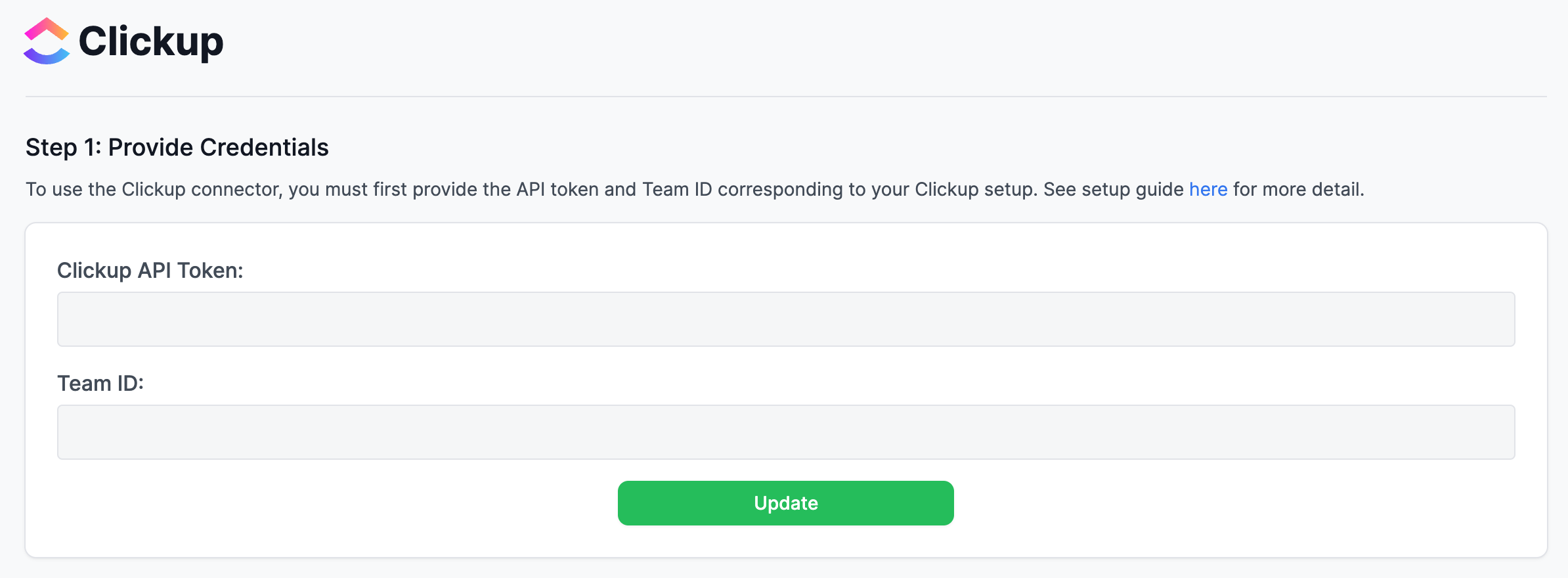
2. In Step 1, provide your **API Token** and the **Team ID**.
## Setting up
### Authorization
1. Log into [ClickUp](https://clickup.com).
2. In **ClickUp 2.0**, click your avatar in the lower-left corner and select **Apps**.\
In **ClickUp 3.0**, click your avatar in the upper-right corner, select **Settings**, and scroll down to click **Apps** in the sidebar.
3. Under **API Token**, click **Generate**.
4. A personal API token will be generated and displayed.
### Indexing
1. Navigate to the Admin Dashboard and select the **ClickUp Connector**.
2. In Step 1, provide your **API Token** and the **Team ID**.
 3. Select the type of connector you want to pull tasks from.\
**Notes**:
* This could be **Entire Workspace**, **Space(s)**, **Folder(s)**, or **List(s)**.
* To pull tasks from the entire workspace, just select **Entire Workspace** from the dropdown and do not add any ID(s).
* To pull tasks from specific **Space(s)**, **Folder(s)**, or **List(s)**, select the respective option from the dropdown and add the ID(s) below. At least one ID needs to be added in this case.
* The space ID(s), folder ID(s), and list ID(s) can be found in the web URL in ClickUp.\
For example, if you open a list in ClickUp, you will see the list ID in the address bar:
4. If any of the **Space(s)**, **List(s)**, or **Folder(s)** connector types is selected, add one or more respective IDs to index the tasks from.
5. Check **Retrieve Task Comments?** if you also want to retrieve and index all comments for each indexed task. Leave this unchecked if you don’t want to index task comments.
6. Click **Connect** to begin indexing.
3. Select the type of connector you want to pull tasks from.\
**Notes**:
* This could be **Entire Workspace**, **Space(s)**, **Folder(s)**, or **List(s)**.
* To pull tasks from the entire workspace, just select **Entire Workspace** from the dropdown and do not add any ID(s).
* To pull tasks from specific **Space(s)**, **Folder(s)**, or **List(s)**, select the respective option from the dropdown and add the ID(s) below. At least one ID needs to be added in this case.
* The space ID(s), folder ID(s), and list ID(s) can be found in the web URL in ClickUp.\
For example, if you open a list in ClickUp, you will see the list ID in the address bar:
4. If any of the **Space(s)**, **List(s)**, or **Folder(s)** connector types is selected, add one or more respective IDs to index the tasks from.
5. Check **Retrieve Task Comments?** if you also want to retrieve and index all comments for each indexed task. Leave this unchecked if you don’t want to index task comments.
6. Click **Connect** to begin indexing.