> ## Documentation Index
> Fetch the complete documentation index at: https://docs.hymalaia.com/llms.txt
> Use this file to discover all available pages before exploring further.
# Bitbucket Connector
> Access knowledge from your Bitbucket Repositories (Cloud only)
## How it works
The Bitbucket Connector indexes all Pull Requests from a specified Bitbucket Cloud repository, project, or entire workspace.
It indexes **OPEN**, **MERGED**, and **DECLINED** pull requests, including their titles and descriptions.
It also captures key metadata such as the author, reviewers, current state, creation/update timestamps, and a direct link back to the original pull request in Bitbucket.
## Setting up
This connector can only be used with **Bitbucket Cloud**.
### Authorization
The Bitbucket Connector uses an **API Token** for authentication. To create an API token:
1. **Log in to Bitbucket**\
Log in to your Bitbucket account.
2. **Open account settings**\
Select the Settings cog in the upper-right corner of the top navigation bar.
3. **Access Atlassian account settings**\
Under Personal settings, select **Atlassian account settings**.
4. **Go to the Security tab**\
Select the **Security** tab on the top navigation bar.
5. **Manage API tokens**\
Select **Create and manage API tokens**.
6. **Create a scoped token**\
Select **Create API token with scopes**.
7. **Name the token**\
Give the API token a name and an expiry date, usually related to the application that will use the token and select **Next**.
8. **Choose Bitbucket**\
Select **Bitbucket** as the app and select **Next**.
9. **Select scopes**\
Select the scopes (permissions) the API token needs and select **Next**.
* **Projects**: `read:project:bitbucket`
* **Repositories**: `read:repository:bitbucket`
* **Pull Requests**: `read:pullrequest:bitbucket`
10. **Create the token**\
Review your token and select the **Create token** button. The page will display the new API token.
11. **Save the token**\
Copy the generated API token and either record or paste it into the application you want to give access.
The token is only displayed once and can't be retrieved later.
For the most up-to-date instructions, refer to the [official Bitbucket documentation](https://support.atlassian.com/bitbucket-cloud/docs/create-an-api-token/).
### Indexing
1. **Open the Bitbucket connector**\
Navigate to the **Admin Dashboard** and select the **Bitbucket Connector**.
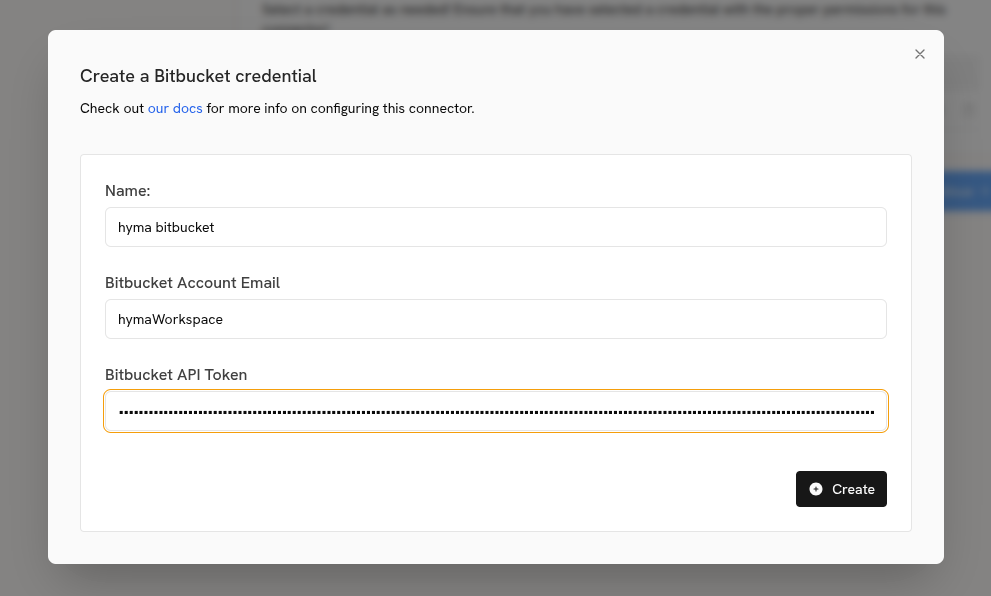
2. **Create credentials**\
Click **Create new credentials** and provide the following:
* **Name**: A descriptive name for your credentials.
* **Email**: The email address for your Bitbucket account.
* **API token**: The API token you created in the previous step.
 3. **Configure connector details**\
Fill in the connector details:
* **Name**: A descriptive name for the connector.
* **Workspace name**: The `WORKSPACE_NAME` from your Bitbucket URL (`https://bitbucket.org/{WORKSPACE_NAME}/...`).
* **Repositories or Projects** (Optional): A comma-separated list of repository slugs or project keys to index.
3. **Configure connector details**\
Fill in the connector details:
* **Name**: A descriptive name for the connector.
* **Workspace name**: The `WORKSPACE_NAME` from your Bitbucket URL (`https://bitbucket.org/{WORKSPACE_NAME}/...`).
* **Repositories or Projects** (Optional): A comma-separated list of repository slugs or project keys to index.
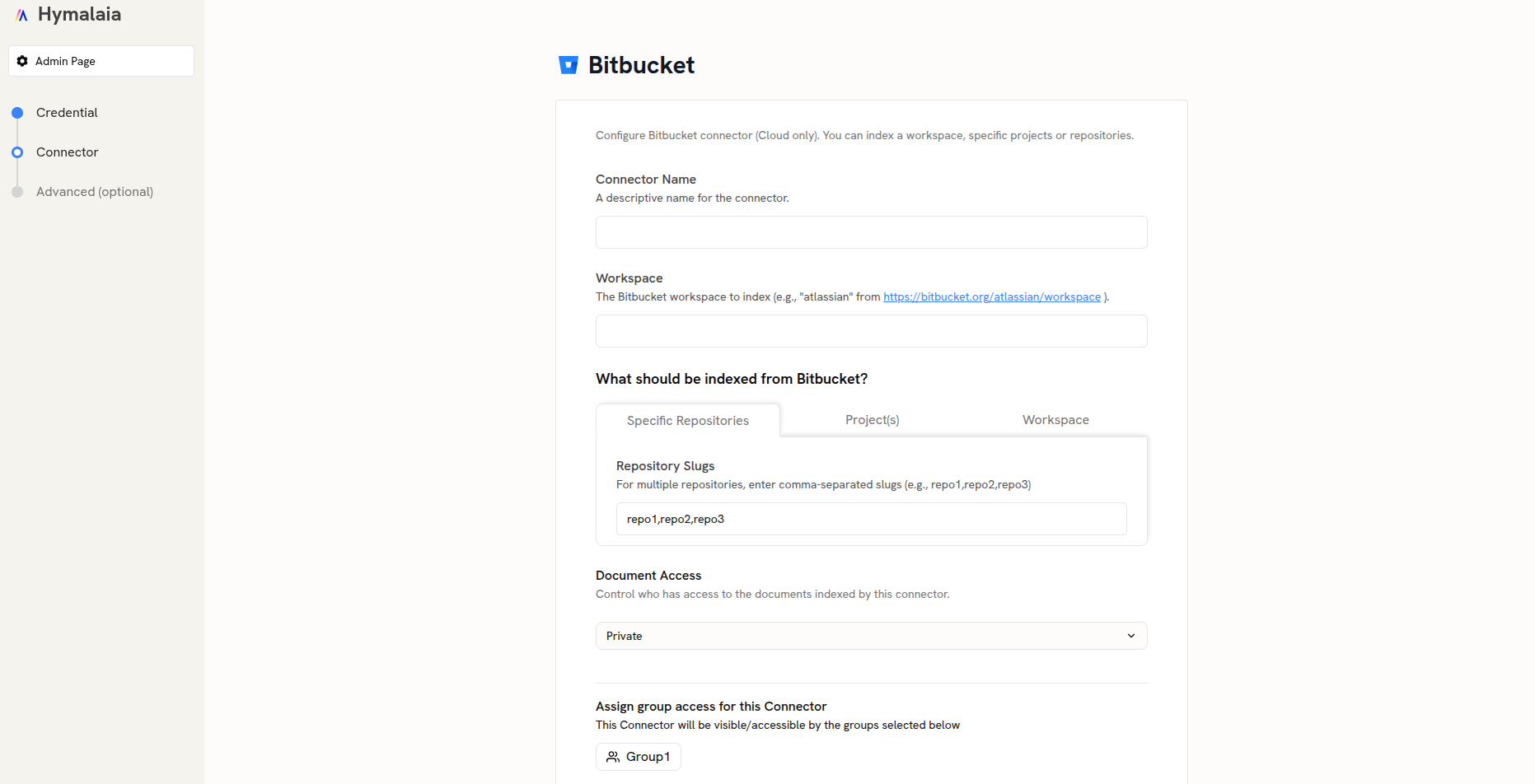 This configuration will index all pull requests from the specified repositories. You can also configure it to index all repositories within a project or an entire workspace.